Install
One container, one volume, one environment variable. Ten minutes, and nothing to mount — the read-only policies ship inside the image.
Before you start
You need Docker, and a machine that can reach the systems you want to read. That is genuinely all. Prodpeek needs no database server, no message queue, no sidecars, and no outbound internet access at all unless you ask for it.
Where to run it
On the same private network as the things it will read. Prodpeek is the thing holding your production credentials, so it belongs somewhere you already treat as sensitive — not on a developer laptop, and not on a box with a public port.
1. Generate the secret key
This key encrypts every stored credential and signs the console session. The process refuses to start without one, so credentials are never stored in plain text.
Keep this out of the data volume
If you lose this key, every stored credential becomes unreadable and you will
re-enter them all. If someone else gets it and a copy of your data volume,
they have your production credentials. Put it in your secret manager, not in
./data and not in the repository.
2. Run it
docker volume create prodpeek-data

docker run -d --name prodpeek \
  --restart unless-stopped \
  -p 127.0.0.1:8787:8787 \
  -e PRODPEEK_SECRET_KEY="<the key from step 1>" \
  -v prodpeek-data:/data \
  ghcr.io/prodpeek/prodpeek:latest
Note 127.0.0.1: on the port. That binds it to localhost only. See
Before it leaves localhost before you change
that.
services:
  prodpeek:
    image: ghcr.io/prodpeek/prodpeek:latest
    restart: unless-stopped
    ports:
      - "127.0.0.1:8787:8787"
    environment:
      PRODPEEK_SECRET_KEY: ${PRODPEEK_SECRET_KEY:?set this in .env}
    volumes:
      # Instance state, the audit log, proof reports. The only thing to back up.
      - prodpeek-data:/data

volumes:
  prodpeek-data:
Add a new Docker Compose resource with the compose file from the previous
tab, set PRODPEEK_SECRET_KEY as an environment variable in Coolify's UI, and
deploy. Coolify handles TLS and the reverse proxy; set
PRODPEEK_SESSION_HTTPS_ONLY=true once it has issued a certificate.
3. Check it is up
And the door an agent uses should already be refusing anonymous callers:
4. Sign in and change the password
Open http://127.0.0.1:8787/admin and sign in with admin / admin.
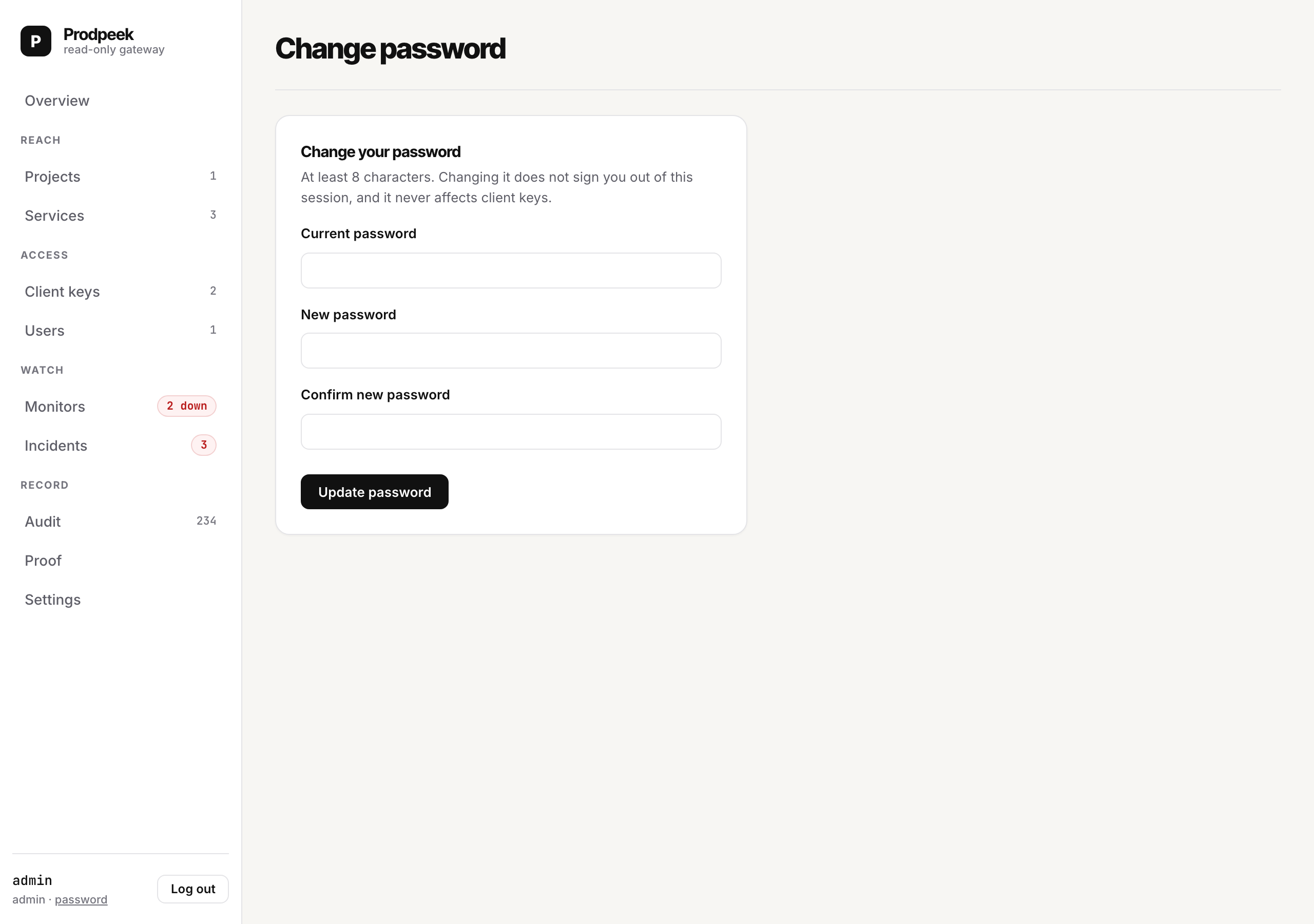
Prodpeek sends you straight to the change-password page and the old password stops working there and then. This is deliberate friction: the console is the key to every production credential this instance holds, and a published default is the first thing anything scanning a network tries.
5. Confirm the catalog shipped
The read-only policies are inside the image; there is nothing to clone or mount.
docker exec prodpeek python -c "
from prodpeek import catalog
loaded = catalog.load()
print(f'{len(loaded.profiles)} profiles')
for name in sorted(loaded.profiles): print(' ', name)
"
10 profiles
  confluence/docs-read
  coolify/read-only
  digitalocean/read-only
  github/actions-read
  github/code-read
  github/triage-read
  grafana/oncall-read
  postgres/read-only
  prometheus/read-only
  ssh/diagnostics-read
Before it leaves localhost
The defaults above are safe on localhost. Three things change that, and all three matter before you bind to anything else.
Put TLS in front of it and tell the session cookie. Caddy, nginx, Traefik or Coolify — whichever you already run. Then:
Warning
With this on and no TLS actually in front, nobody can sign in. That is the correct failure — a session cookie marked Secure that travels over plain HTTP is a session cookie that does not travel.
Keep the login rate limit. It is on by default (10 attempts per 5 minutes per
address). PRODPEEK_LOGIN_MAX_ATTEMPTS=0 disables it; there is no good reason to.
Do not expose /admin to the internet. /mcp needs to be reachable by your
agents. /admin does not need to be reachable by anyone who is not on your
network or your VPN. Two different exposure decisions, and the console is the one
that holds the credentials.
Upgrading
The database migrates itself on boot, forward only. Your services, keys, audit log and proof reports survive. Client keys minted before key expiry existed keep working — a schema change must not lock your developers out.
Read the release notes first: trust-critical changes are listed at the top, separately, because they are the ones that change what an agent may do.
Backing up
One volume, one file that matters:
docker run --rm -v prodpeek-data:/data -v "$PWD:/backup" alpine \
  tar czf /backup/prodpeek-$(date +%F).tar.gz -C /data .
Store PRODPEEK_SECRET_KEY somewhere else. A backup and the key together are your
production credentials; separately, the backup is encrypted noise.